
Everything you copied is one shortcut away.
ClipBuffer sits in the menu bar and remembers what you copy: text, links, images and files. Press ⇧⌘V, pick an earlier item with the arrow keys, and it lands in the app you were using.
Free. macOS 14 or later. No account, no network.
Copy as always. Paste from the list.
Three keys, in this order. Nothing to learn beyond them.
-
Copy
Use ⌘C or ⌘X as usual. The item goes to the system clipboard and to the ClipBuffer history.
-
Open the list
Hold ⇧⌘V. The list of recent copies opens next to your work. You can change the shortcut in Settings.
-
Pick
Move with ↑ and ↓, then release the keys or press Enter. The item is pasted into the app you were in. Esc closes the list.
See it as it is
Real windows of the app, with example data.
-
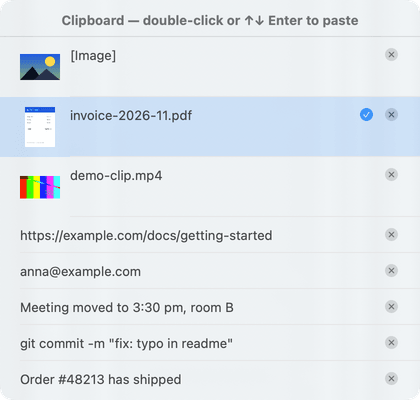
The listRecent copies. Choose with ↑ ↓, release to paste. -
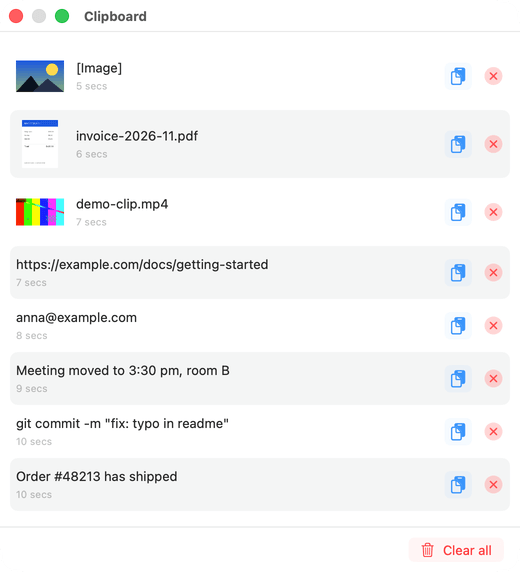
HistoryThe history window: images, files, links and text, newest first. -
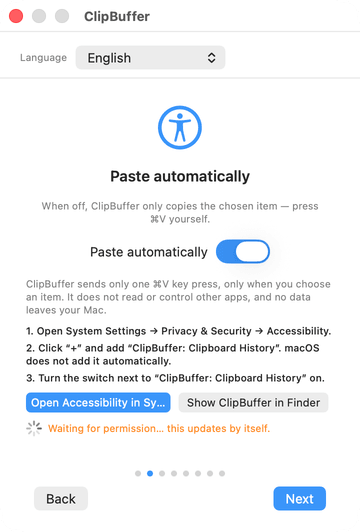
Paste automaticallyThe permission step, with the switch for automatic pasting. -
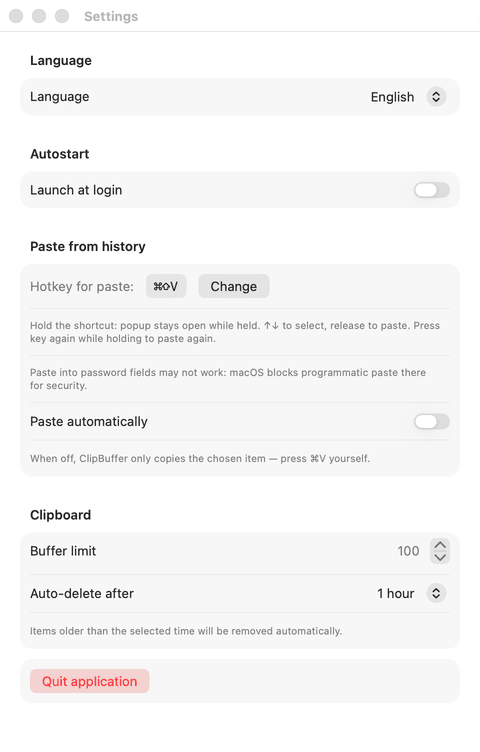
SettingsHotkey, buffer size and auto-delete.
What it keeps, and for how long
Small on purpose. A list, a shortcut and a few settings.
-
Every kind of copy
Plain and rich text, links, images and files. Large items are kept in a temporary folder that is cleared at every launch.
-
A limit you choose
Keep from 5 to 500 items, 50 by default. When the list is full the oldest item leaves first.
-
Forget on a timer
Remove items automatically after 5 minutes, 15 minutes, 30 minutes, 1 hour, 6 hours or 24 hours. Or never.
-
Your own shortcut
⇧⌘V is the default. Record any combination in Settings. The list stays open while you hold the keys.
-
A window with the whole history
Open it from the menu bar to look through every item, copy one again, delete one or clear everything.
-
Nine languages
English, Russian, Chinese, Japanese, German, French, Spanish, Brazilian Portuguese and Korean. Pick one in Settings or follow macOS.
It never leaves your Mac.
ClipBuffer has no network code at all. No account, no sync, no analytics, no crash reports sent anywhere.
What the app does with your copies
- History
- Held in memory. When you quit or restart the app, the history is empty again.
- Large items
- Items over 256 KB go to a temporary folder on your Mac. The folder is cleared when the app starts.
- Network
- None. The app never connects to the internet and has no update check.
- Accounts and analytics
- None. There is nothing to sign in to and nothing is measured.
- Permissions
- The direct download asks for Accessibility (so the shortcut and Paste work in other apps) and may ask for Input Monitoring. It does not read your screen.
- What you copy
- The history holds whatever you copy, including a password from a password manager, until you clear it. Use Clear all, a short timer or a low limit.
Questions and answers
Does it send my clipboard anywhere?
No. The app has no network code, no account and no analytics. The history lives in memory on your Mac, and big items go to a temporary folder that is cleared at launch.
Is the history still there after a restart?
No. The history is kept in memory only, so quitting or restarting the app starts with an empty list. That is by design: nothing you copied is written to disk for later.
Why does it ask for Accessibility?
The direct download listens for your shortcut system-wide and presses ⌘V for you in the app you were using. macOS only allows that with the Accessibility permission. Without it the list still opens, but pasting into other apps does not work.
What about passwords?
ClipBuffer keeps what you copy, passwords included, until it is cleared, pushed out by the limit or removed by the timer. macOS also blocks programmatic paste into password fields, so pasting there may not work. Use a short timer if you copy secrets.
Which systems does it run on?
macOS 14 or later, on Apple silicon and Intel. Windows and Linux versions are not planned yet.
What does it cost?
Nothing. The application is free, closed source and licensed for personal and internal business use. The terms page has the details.
How do I remove it?
Quit the app from the menu bar, then drag ClipBuffer from Applications to the Bin. The app keeps no files outside the temporary folder and its macOS preferences.
Stop copying the same thing twice
Download “ClipBuffer: Clipboard History” and keep the last things you copied within reach.
macOS
Download for macOSMac App Store
Coming soon to the App StoreWindows
Coming soonLinux
Coming soonOn first launch the app asks you to allow Accessibility so that the shortcut and Paste work in other apps. A short walkthrough shows how.
Version 1.1.1